Brushes & Erasers
Paintrix Studio includes 60 brushes across nine families. Choose expressive Manga pens, patterned tones or textured paint, adjust the oil-paint relief, and erase with matching brush tips.
Choosing a brush
Tap the brush button to switch to painting, then tap it again to open the brush library. Choose a category and tap a brush. Categories appear on the left on iPad and across the top on iPhone.
Tap the star on any brush to favorite it. Favorites gather in their own row at the top of the library, and the library reopens where you left it.
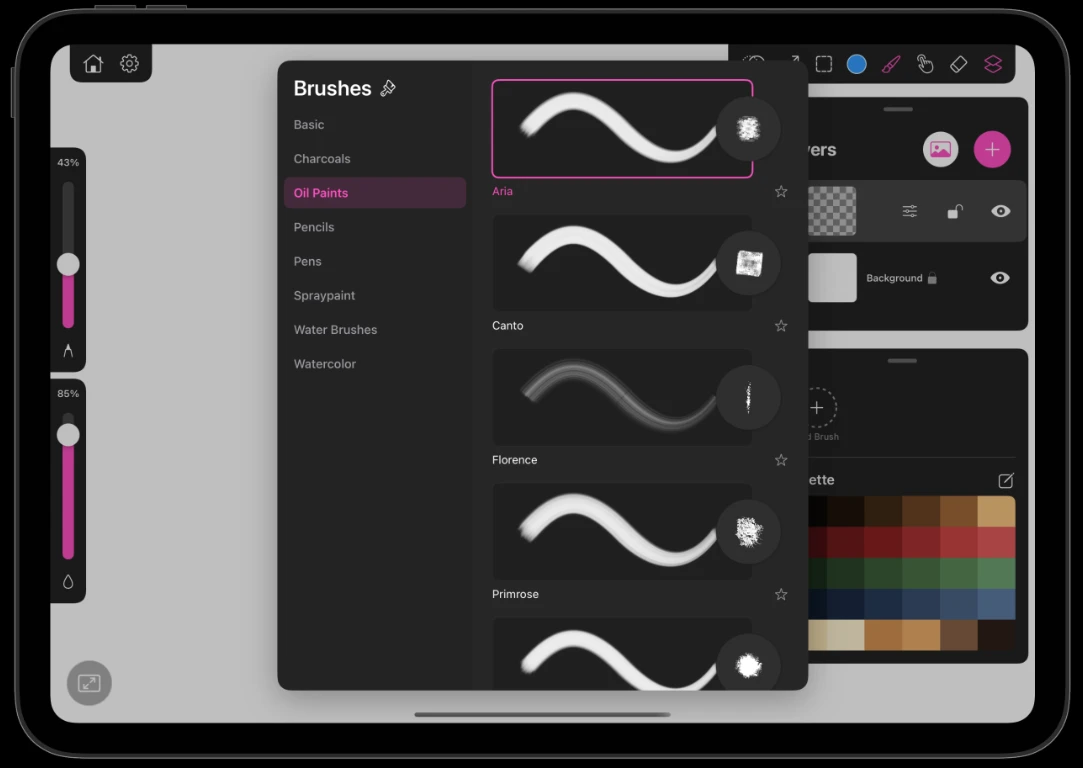
The nine families
| Family | Brushes | Character |
|---|---|---|
| Oil Paints | 7 | Six paint brushes with adjustable relief, plus a brush for adding bristle texture to existing paint |
| Manga | 10 | Expressive inking pens, fine lines, dot tones, hatching and stippling |
| Watercolor | 7 | Transparent washes with pooled rims and paper grain |
| Pencils | 7 | Graphite on paper, with a steep fill curve for light shading |
| Charcoals | 7 | Dry, crumbling sticks that darken hard under pressure |
| Pens | 7 | Clean ink, from ballpoint to brush-pen tapers |
| Spraypaint | 6 | Airbrush and aerosol scatter |
| Basic | 7 | Plain geometric tips for blocking in and masking |
| Water Brushes | 2 | Wet media that keeps flowing after the stroke lands |
Oil Paints
Watercolor
Pencils
Charcoals
Pens
Spraypaint
Basic
Water Brushes
Oil paint and Impasto
The oil brushes leave directional bristle grooves, raised edges and softly lit paint. They also blend and drag existing color as you paint across it.
- Open the brush library in painting mode and choose Oil Paints.
- Use the Impasto slider at the top of the brush list. The default is 50%. Lower values give a flatter finish; higher values emphasize the raised paint and bristle grooves.
- The setting applies to new strokes and is remembered between sessions. Changing it does not alter strokes already on the canvas.
Impasto controls the surface relief, not how much the stroke covers. Use the fill/flow slider beside the canvas to lay down less paint and let the canvas or underlying color show through. Pressure and brush rotation still work on the oil-paint brushes that support them.
Bristles
Bristles sits at the top of the oil-paint list. Select the layer containing the paint or imported artwork you want to texture, then brush over its painted pixels. It adds bristle relief and gently smears existing pigment without depositing the selected color. It leaves an empty layer blank. Its size stays fixed as pressure changes, and its palette badge uses an icon instead of a color.
Oil paint and Bristles also work in collaboration. Each stroke keeps the Impasto setting it began with, including when your partner draws at the same time.
Manga brushes
Choose Manga in the brush library for ten brushes for line art, shading and comic effects. The circular previews show a short processed pen mark or a close-up of the texture.
| Brush | Use |
|---|---|
| G-Pen | Expressive contours with changing width, a pointed finish and extra stabilization. |
| Maru | Fine details, hair and delicate line work with subtle width variation. |
| Fineliner | Even-width lines with strong stabilization for tracing sketches and drawing clean details. |
| Brush Ink | Fuller, expressive ink strokes with a long, narrow taper. |
| Dry Ink | Fine broken ink with subtle paper grain and a tapered finish. |
| Dot Tone Light | Sparse regular dots for light shading. |
| Dot Tone Medium | Regular dots with medium coverage for midtones. |
| Dot Tone Dark | Denser regular dots for deeper shading. |
| Hatch | Parallel diagonal lines for graphic shading. |
| Stipple | Scattered dots for textured shading and accents. |
Line width follows your speed
G-Pen, Maru, Brush Ink and Dry Ink use a three-part speed response: slow movement makes a thin line, medium speed makes it broader, and fast movement makes it thin again. This works with a finger as well as Apple Pencil. Try a stroke that gradually speeds up to feel the full range.
G-Pen also adds a small increase in width from Pencil pressure when pressure is enabled. Fineliner keeps an even width. G-Pen and Fineliner apply extra smoothing on top of the Stabilization setting, so lower that slider if the line feels too restrained.
The dot, hatch and stipple patterns stay aligned to the canvas. Brush size changes the area you cover, not the spacing of the pattern. Choose the light, medium or dark dot brush to change the tone density.
Size and fill
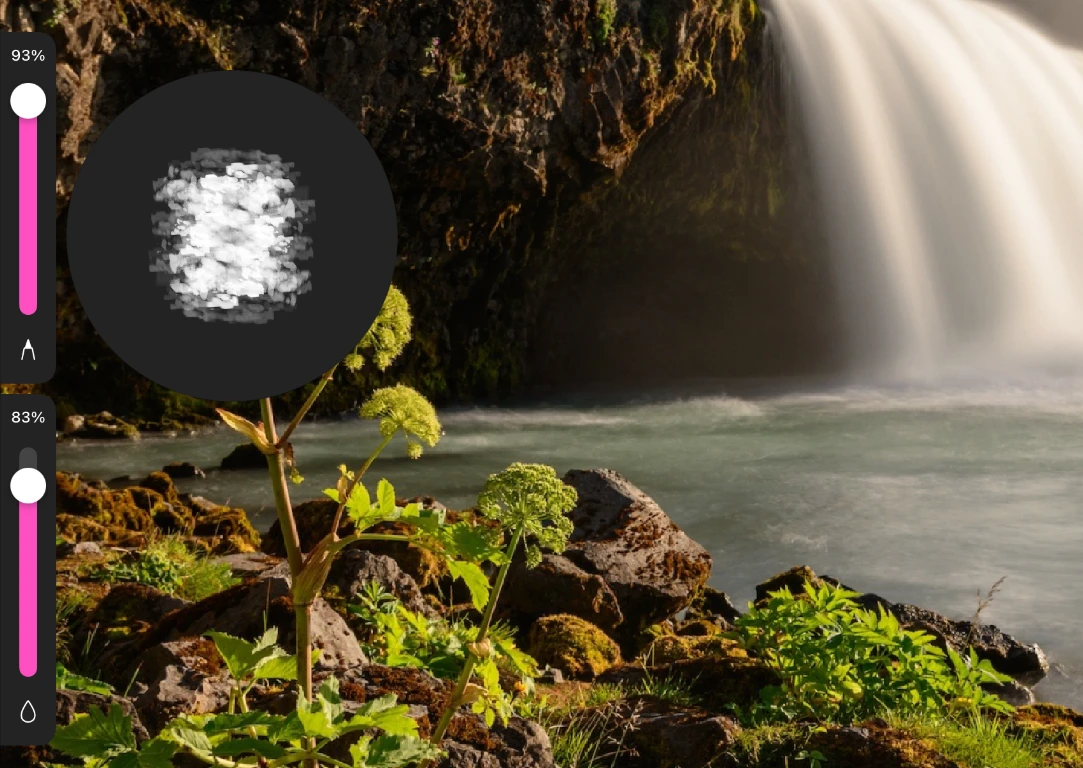
The two sliders beside the canvas shape every brush.
- Size is the brush diameter in canvas pixels. The preview beside the slider shows the real tip at that size, texture and all.
- Fill is how much paint each stroke puts down. Low fill glazes, so repeated passes deepen the color. High fill covers in one pass.
Every brush opens at its own sensible default for both, so switching from a pencil to an oil brush does not leave you with an unusable setting.
Apple Pencil pressure and tilt
- Pressure changes size or coverage on brushes that support it. Toggle Use Pressure in settings to control this response. The Manga pens use the speed behavior described above, while Bristles keeps its size fixed.
- Tilt matters most to pencils and charcoals. Lay the Pencil over and the stroke broadens and flattens into shading, the way the side of a graphite stick behaves.
- Hover shows where the brush will land before you touch down, including the clone stamp's source preview.
- Squeeze on Apple Pencil Pro undoes your last stroke.
Stabilization
Stabilization smooths the path of your stroke as you draw it. Open the gear menu and drag the Stabilization slider. Higher values pull harder toward a clean line, which helps with long confident strokes, inking and lettering. Low values keep every bit of your hand's character.
Erasers
The eraser uses the same brush engine as painting, so a charcoal eraser crumbles at the edges and an oil eraser lifts paint with the same texture it laid down. Tap the eraser button twice to choose a style.
The Smart Eraser
The Smart Eraser works like a flood fill in reverse. Touch an area and it selects the connected region of similar color, then erases it. Keep your finger down and drag to grow or shrink the selection before it commits, so you can feel out the right tolerance instead of guessing.
Turn on Alpha Lock on a layer and the eraser, like the brush, can only affect pixels that already have paint. It is the fastest way to recolor or clean up a shape without touching its edges. See Layer Adjustments.