Transform
Transform repositions what you have already painted. It works on a whole layer, or on just the part of it inside a selection.
Using it
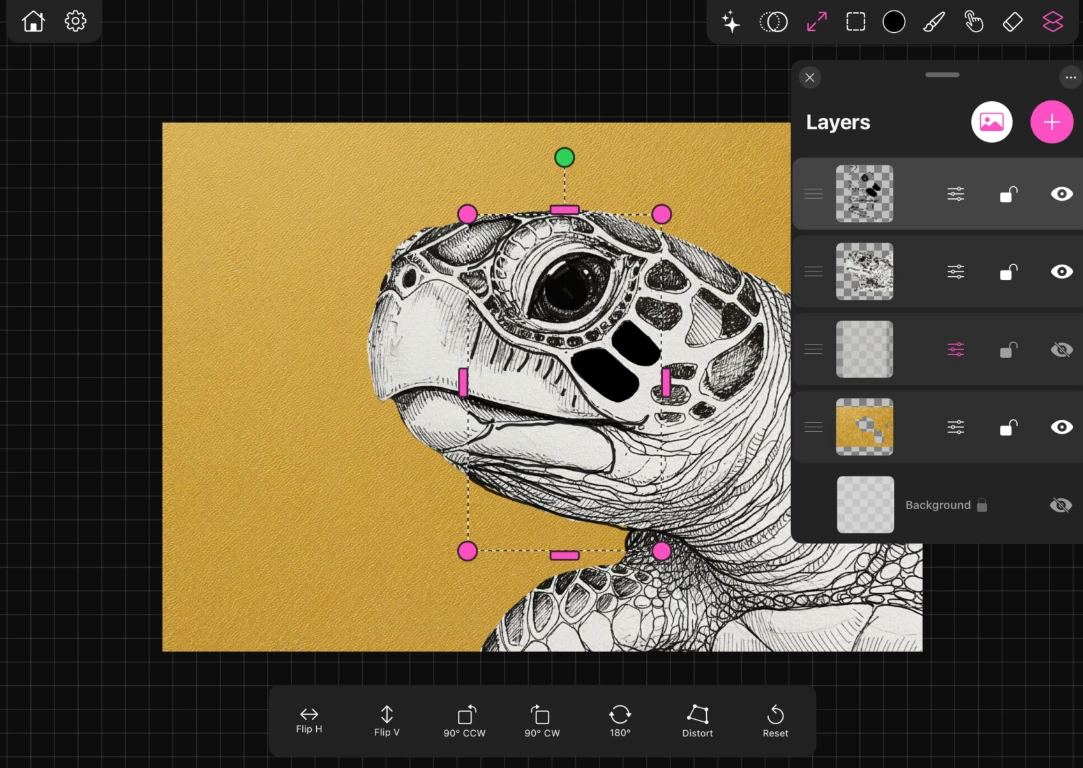
Tap the transform tool and a box appears around the content of the active layer, or around your selection if you have one.
- Drag inside the box to move it.
- Drag a corner handle to resize and rotate.
- Drag an edge to stretch along one axis.
Confirm with Apply, or back out with Cancel and nothing changes.
Notes
- Scaling up stretches the pixels you already have, so a shape enlarged a long way will soften. Painting it larger to begin with always looks better.
- With a selection active, transform moves only the selected pixels and leaves a hole behind them in the layer, which is the behaviour you want for cutting an element out and repositioning it.
- With a keyboard attached, T selects the transform tool.