Timelapse
Every project records itself as you paint. You do not have to start anything, and the recording is there whenever you want to watch the painting build.
Recording
Recording is on by default. Frames are captured automatically as you work, so there is nothing to remember at the start of a session.
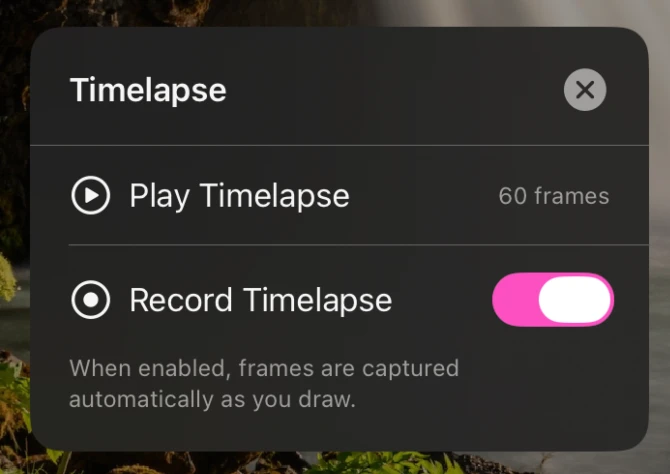
Open the gear menu and tap Timelapse to see the options, including the Record Timelapse switch if you would rather a particular project were not recorded.
Watching it back
Play Timelapse opens the player, which also shows how many frames the project has collected. Scrub through the frames to find a particular moment, and swipe down to close.
Exporting a video
Export from the player and Paintrix Studio renders the frames into a video file, showing progress as it goes. When it finishes, the system share sheet opens so you can save it to Photos or send it anywhere.
Reference images
If you are painting over a reference image on the background layer, Use image in timelapse in the background settings decides whether it appears in the recording. Turn it off and the timelapse shows only your own strokes appearing on an empty canvas.
The timelapse is stored with the project, so it survives closing the app and reopening the piece later.