Projects & Canvases
The home screen is your gallery. This chapter covers making canvases, importing work, keeping the gallery tidy, and how saving actually behaves.
The gallery
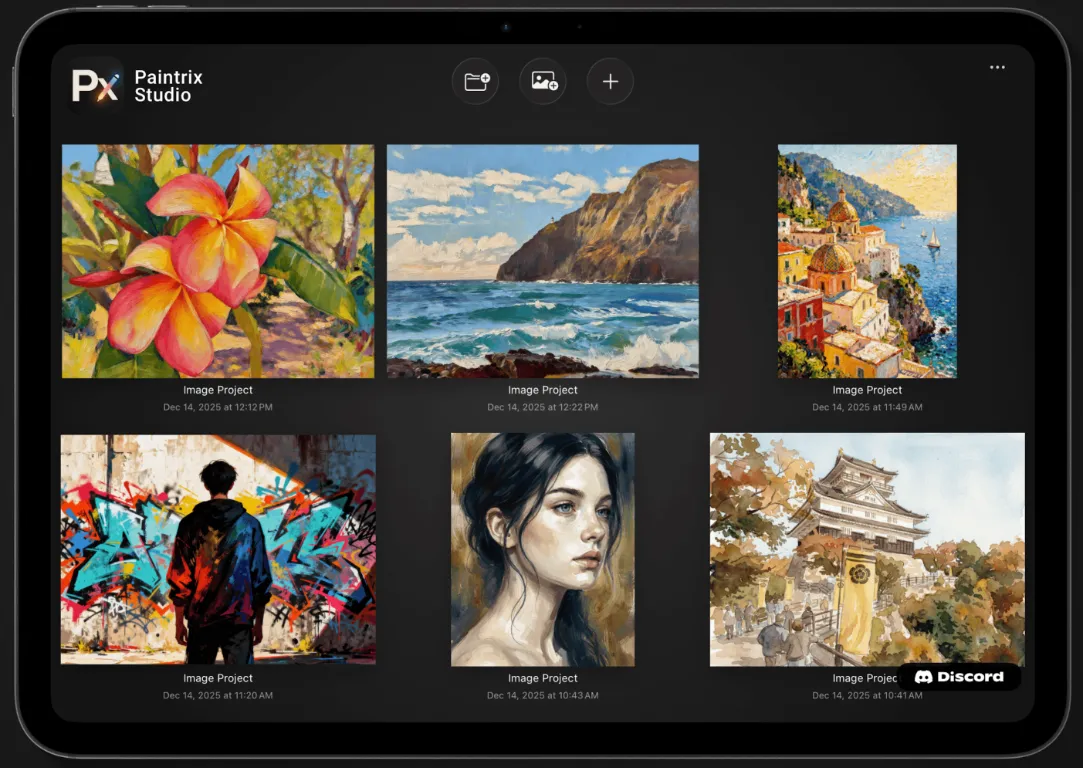
Every project you have made sits on the home screen as a live thumbnail, two across on iPhone and three across on iPad. Tap one to open it. The buttons across the top are, left to right:
- Draw Together starts or joins a collaboration session. See Collaborate.
- New group makes a folder you can drag projects into.
- Import photo turns an image from your library into a new canvas.
- + creates a blank canvas.
Creating a canvas
Tap + and the new canvas sheet asks for four things: a template, an orientation, a PPI value and a title. The templates are:
| Template | Pixels |
|---|---|
| Screen Size | Your device's native resolution |
| iPhone | 1320 × 2868 |
| iPad | 2064 × 2752 |
| 4K | 4096 × 1714 |
| A3 | 3508 × 4961 |
| A4 | 2480 × 3508 |
| A5 | 1748 × 2480 |
| B4 Manga | 2953 × 4169 |
| US Letter | 2550 × 3300 |
| 1080 × 1350 |
Orientation swaps the two numbers. PPI does not change the pixel count, it is the print resolution written into exported files, and 72 is the default. The title is what the gallery shows, and you can change it later.
Bigger is not automatically better. On a very large canvas your brushes cover proportionally less of the image, so strokes look small and the app has far more pixels to push. A4 or Screen Size is a comfortable place to start.
Resizing a canvas
Open the gear menu inside a project and scroll to the bottom. Type new W and H values and the canvas resizes when you close the menu. Tapping Resize Canvas instead zooms out and gives you a crop frame you can drag.
Importing
- A photo becomes a new project sized to the image. Use the photo button on the home screen.
- A photo into an existing project arrives as its own layer. Use the photo button inside the layers panel.
- A
.paintrixfile is a full project with its layers intact. Open the menu on the home screen and choose Import, or just open the file from Files, Mail or AirDrop and it lands in your gallery. - A palette file (
.mdpaletteor a Procreate.swatches) goes to the palette, not the gallery. See The Palette.
Groups
Tap the folder button to make a group, then drag project thumbnails into it. Long press a group to Rename it or to Ungroup, which returns its projects to the gallery.
Project actions
Long press any project thumbnail:
| Action | What it does |
|---|---|
| Share | Renders the artwork and opens the system share sheet |
| Export Image… | Writes a PNG or JPEG at a size and PPI you choose |
| Backup to iCloud | Stores a copy of the project file in iCloud Drive |
| Change Title | Renames the project |
| Delete | Removes the project permanently |
Saving and reopening
Paintrix Studio saves continuously while you paint and again when you leave a canvas. There is no save button and no unsaved state to lose.
Creating projects, painting in them and exporting them is free and unlimited. Reopening a project you saved earlier is the one feature a Pro subscription unlocks. If you plan to finish a piece across several sessions, that is the subscription's job.