Color, Gradients & Materials
The color swatch in the toolbar opens three tabs: flat color, gradients, and materials. All three paint with whatever brush you already have selected.
The color swatch
The swatch shows your current color. Tap it to open the picker. You can also drag the swatch straight onto the canvas and drop it to flood fill the area under your finger, without opening anything.
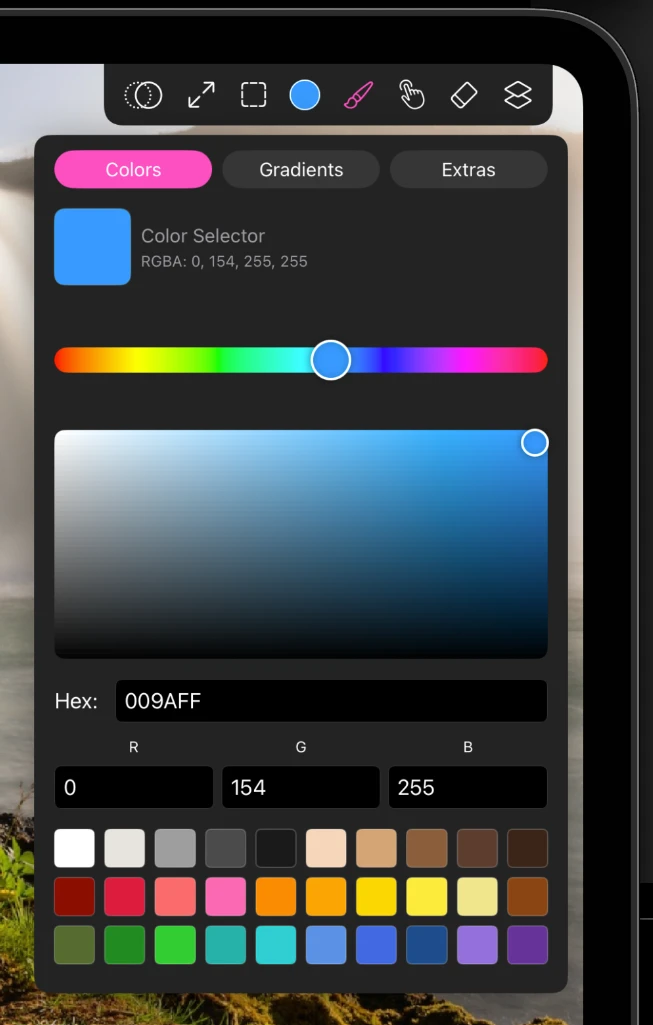
The Colors tab
- Pick a hue on the outer control, then the shade in the square: saturation across, brightness up.
- Type an exact hex value, or set R, G and B individually.
- Recent colors fill the grid below. Tap one to go back to it.
Found a color worth keeping? Add it to the palette so it survives the recents list. See The Palette.
The Gradients tab
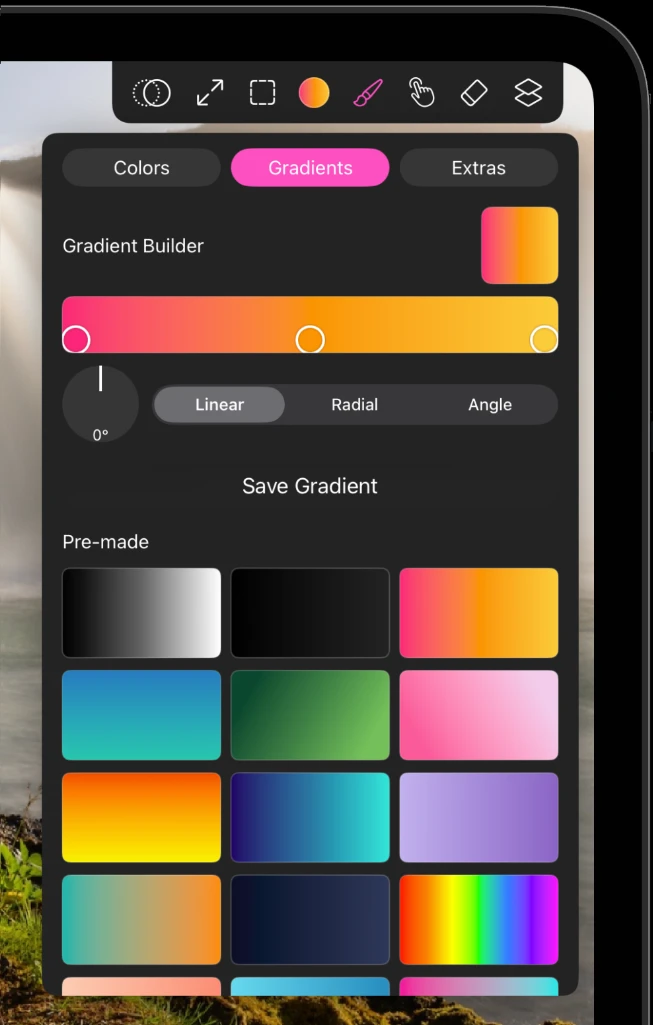
A gradient paints a blend rather than a flat color, and it follows your brush like any other. Three kinds:
| Kind | Shape |
|---|---|
| Linear | A straight blend along an angle you set |
| Radial | A blend outward from a center point |
| Angular | A blend swept around a center, like a color wheel |
Start from a preset or build your own in the editor: add color stops, drag them along the bar to change where the blend falls, and set the angle for linear and angular kinds.
The Extras tab
Materials paint a real surface instead of a color: your stroke picks up the texture and the shading of the material as it goes down. There are fourteen, in four groups.
Metal
Stone
Wood
Effects
Materials are strongest on brushes with a wide, flat footprint. Try them with a Basic Hard Round or an oil brush at a large size before judging them on a fine pen.